
Connect your piano to PianoGo on a computer
On a computer, PianoGo receives your piano through a USB or MIDI cable, right in the browser. All you need is a compatible browser, the right cable and a permission to grant once.
Which browser should I use?
Use Chrome, Edge, Firefox or Opera. Safari doesn't support the MIDI connection. If you're on Safari, PianoGo suggests the microphone instead (see Playing with the microphone).
For the full list of devices and browsers, see Devices and browsers.
Which cable should I choose?
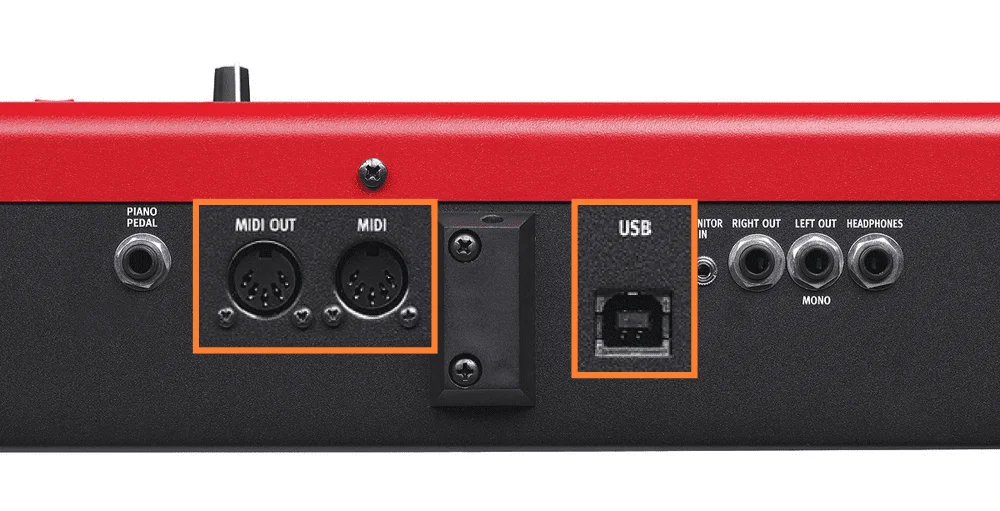
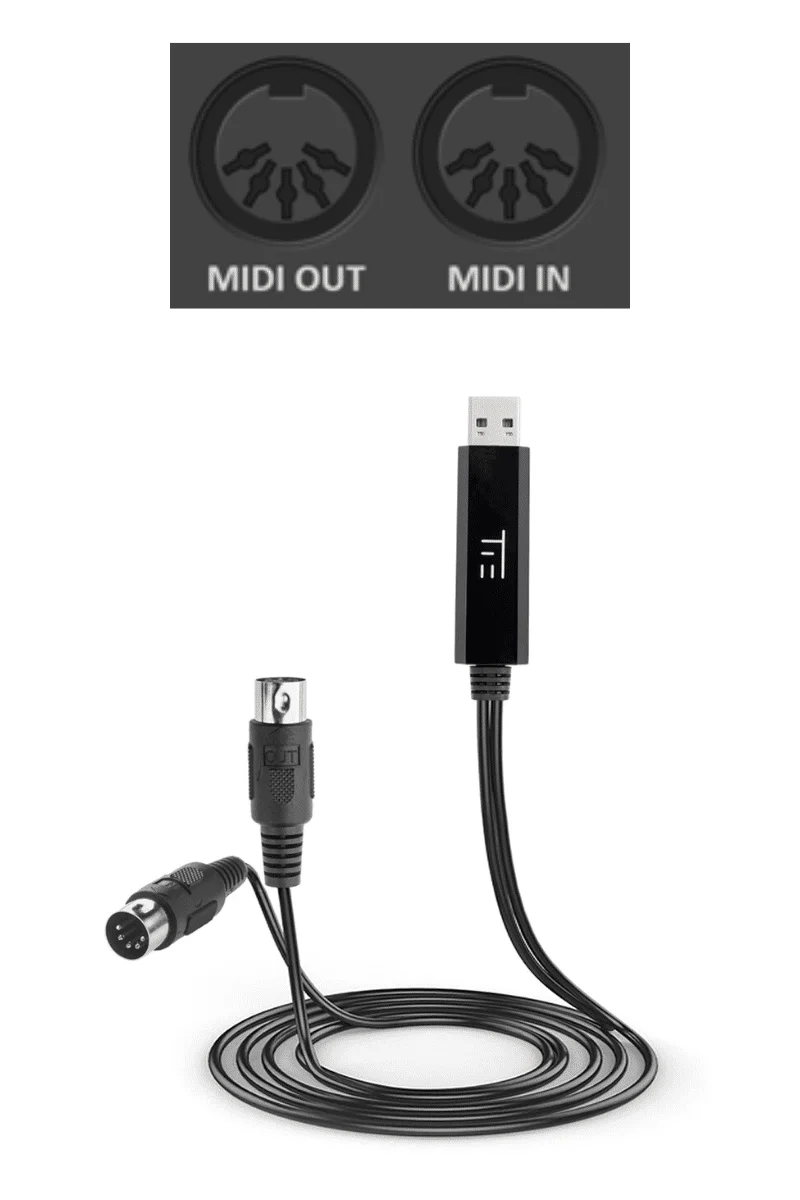
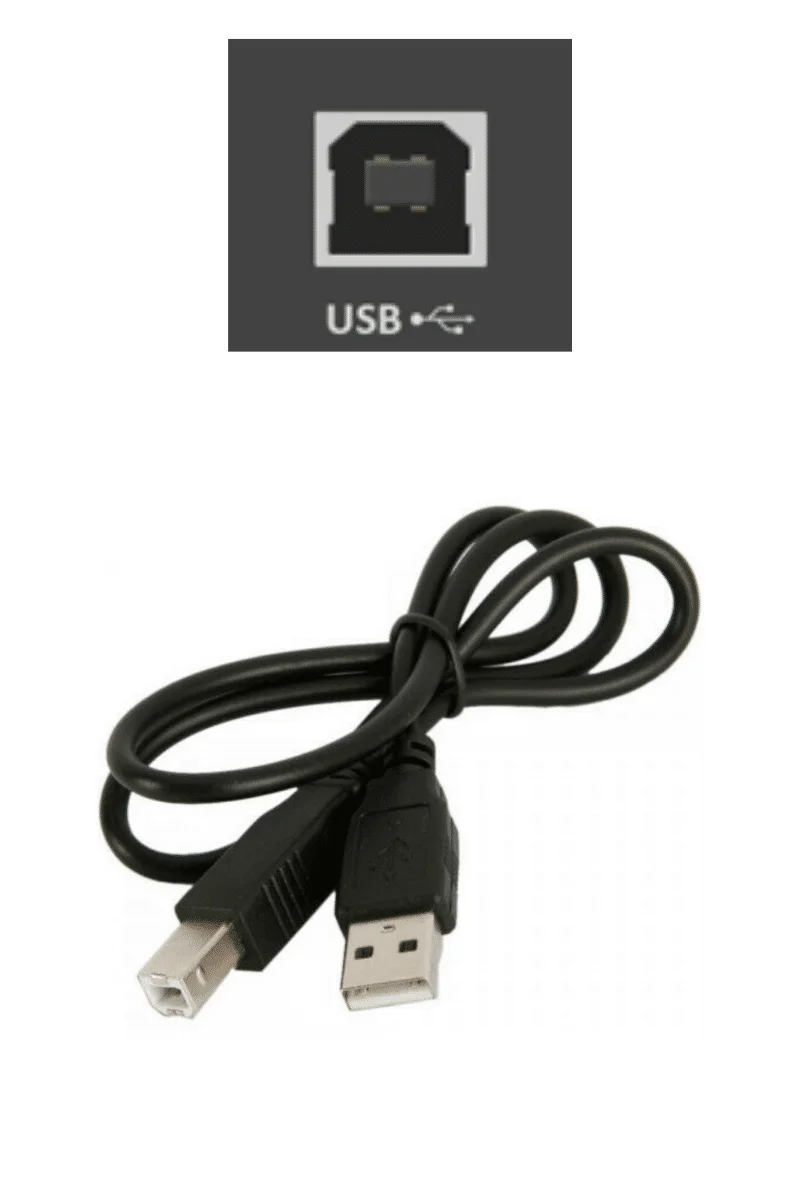
Look at the back of your piano. It has either a USB port (square), or MIDI ports (round), sometimes both. Choose the cable that matches the port:
- USB port: a printer-style USB cable (USB-A or USB-C on the computer side, USB-B on the piano side);
- MIDI ports: a MIDI-to-USB cable or adapter.
How do I plug in the piano?
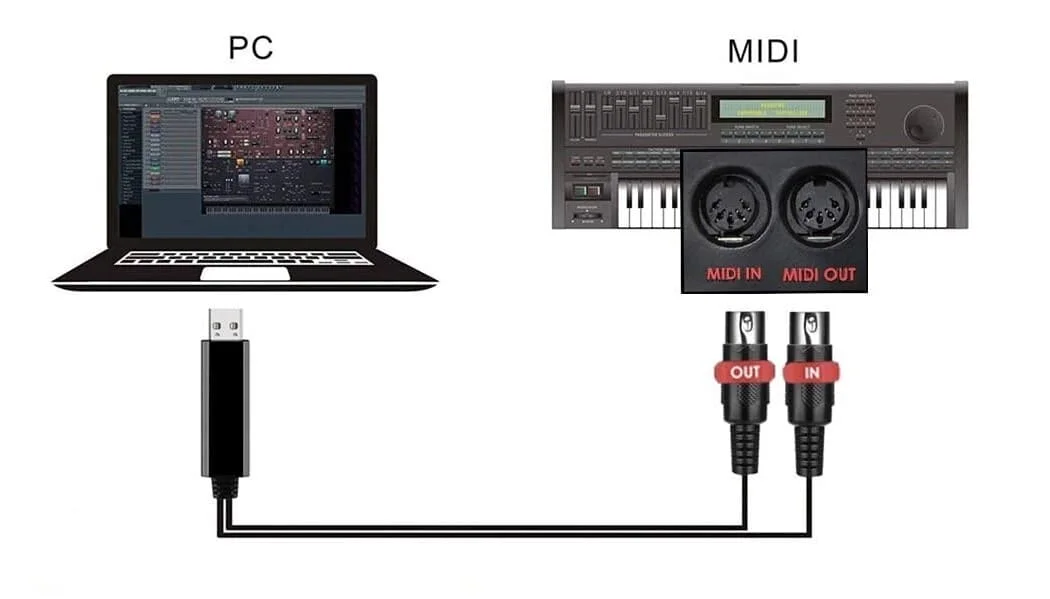
- Plug the cable into your piano's USB (or MIDI) port.
- If you're using MIDI ports, plug the piano's OUT port into the cable's IN input, and the other way around: the piano's IN receives what comes out of the cable's OUT.
- Plug the other end into a USB port on the computer.
How do I connect the piano in PianoGo?
- Open the practice screen of a song.
- Click the connection chip at the top of the screen. The "Connect your piano" window opens.
- Choose the "USB / MIDI cable" tab.
- If the "Activate" button appears, click it and accept the browser's request. It asks for permission to use your MIDI devices.
- Your piano appears in the "Detected devices" list. If there are several, click the right one.
- Play a note: the "Piano received" message appears with the note's name. Click "Start playing".
The connection chip turns green and says "USB connected". If it stays orange and says "No device", read PianoGo doesn't recognize my piano.
What if the browser denied the permission?
PianoGo then says that access to MIDI devices is blocked for the site. To restore it:
- Chrome, Edge, Opera: click the icon to the left of the address bar, then allow access;
- Firefox: click the crossed-out icon in the address bar, then remove the block.
Then reload the page. In the meantime, the microphone and the computer keyboard remain usable.
Piano plugged in but not responding?
Was this article helpful?
In the same topic
Ready to try it?
Turn your songs into sheet music and MIDI files with the La Touche Musicale apps in the HUB.