
Read and listen to your sheet music
When a conversion is finished, it opens on a playback page: the sheet music, the piano roll, or both together. You can listen to it, slow it down and compare it with the original video or audio.
How do I find my sheet music?
Open the list of your conversions in the relevant app, then click the sheet music you want. The details are in Downloading your files and finding your conversions.
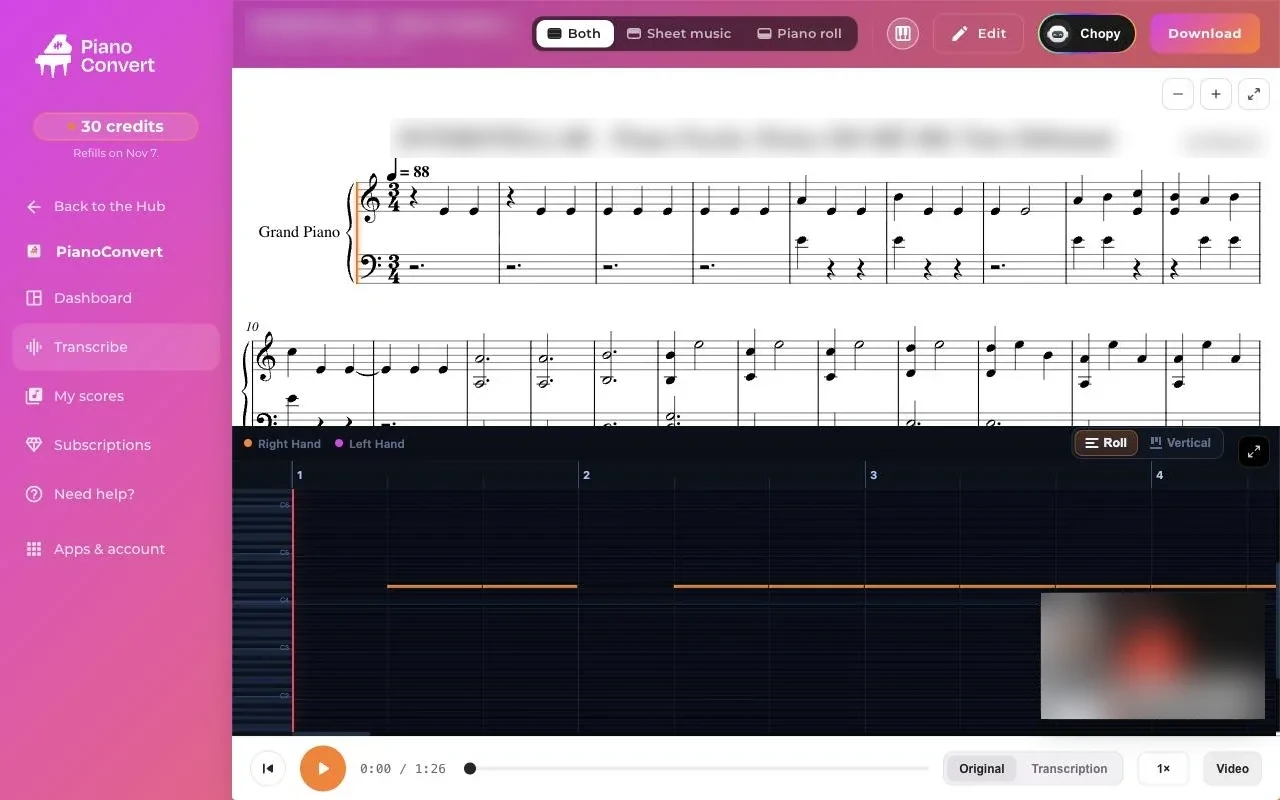
Which view should I choose: sheet music, piano roll or both?
A selector at the top of the page offers three views. They show the same notes.
- Both: the sheet music on top, the piano roll below, in sync. This is the view offered on your first visit.
- Sheet music: the engraved sheet music alone, with a cursor that follows the music.
- Piano roll: the notes as bars on a keyboard.
The view you choose is kept for your next visit.
How do I listen to my sheet music?
A playback bar sits below the sheet music. It includes:
- a button to go back to the start;
- a play / pause button;
- the elapsed time and the total length;
- a progress bar that you click, or drag, to jump to a passage;
- a speed button.
The speed button cycles through three settings: normal speed, half speed (0.5×), then three-quarter speed (0.75×). Slowing down helps you practice a difficult passage.
How do I compare with the original?
When the original audio is available, the playback bar lets you switch between Original and Transcription. You first hear the music you imported, then the sheet music played back, and you can spot the differences.
What happens to the YouTube video during playback?
If you converted a link, a small media thumbnail appears at the bottom right and follows the sheet music. You can move it or hide it. A Video button (or Audio when there is no video) on the playback bar brings it back.
Following works with YouTube, TikTok and SoundCloud. For other sources (Bandcamp, imported file, recording), the thumbnail is an audio card with the waveform.
How do I zoom in on the sheet music?
Use the zoom − and + buttons. The maximum magnification depends on the number of staves. On a phone, zoom is more limited when the sheet music has lyrics.
What about on a phone?
On a narrow screen, the page adapts: the view selector takes the full width under the header, and the Edit and Download actions and feedback go through the top bar and the "···" panel.
The piano roll is vertical by default there, with the keyboard at the bottom. If you switch it to horizontal, that choice is remembered on your phone.
What's next?
- Correct a note: Editing your sheet music with the editor.
- Get the most out of the piano roll: The piano roll.
- Get a PDF, a MIDI or a MusicXML file: Downloading your files.
- The sheet music contains mistakes: Mistakes in the sheet music.
Was this article helpful?
In the same topic
Ready to try it?
Turn your songs into sheet music and MIDI files with the La Touche Musicale apps in the HUB.