
Edit your sheet music with the editor
The Edit button on the playback page opens the editor. You correct your transcription on the sheet music or in the piano roll, and your files follow your corrections. To go faster, ask Chopy, the editor's assistant, to make the change; it also answers your questions about the sheet music.
How do I open the editor?
- Open your sheet music (see how).
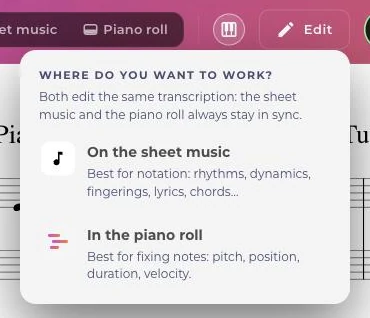
- Click Edit. A menu asks “Where do you want to work?”:
- On the sheet music: notes, rhythms, rests, lyrics, fingerings, instruments, tempo, time signature, clefs…
- In the piano roll: best for fixing notes, with their pitch, position, duration and velocity.
- On the sheet music opens the editor full screen, in Edit mode.
Both choices edit the same transcription, and always stay in sync: a change made on the sheet music or in the piano roll, by hand or by Chopy, is automatically carried over to the other. Piano roll corrections still in progress are picked up when the editor opens. On a phone, the menu opens as a panel from the bottom of the screen.
What does the editor look like?
- At the top: the title and the number of instruments, Undo and Redo, listening (back to start, play, Original or Transcription choice, speed), the action search (Cmd/Ctrl + K), then Quit and Save.
- On the left: the palette, with Select (V) mode, note input mode (N), durations, the dot and the rest.
- In the center: the sheet music. Click a note to select it: a toolbar appears just above it.
- On the right: the Corrections, Instruments and Chopy tabs.
Every feature is detailed in Editor features: selection, note input, correction cards, instruments, lyrics, listening, keyboard shortcuts and the mobile version.
How do I save and quit?
The editor doesn't save on its own: click Save before closing the tab or leaving the page.
- Save updates the sheet music and the piano roll, then closes the editor: “Changes saved. The sheet music and the piano roll are up to date.” To keep working, click Edit again.
- Quit with no changes closes the editor straight away.
- Quit with changes asks you to confirm: Save and quit, Quit without saving or Keep editing. The number of unsaved changes is shown.
- If saving fails, the editor stays open with your changes: try again.
Changes made in the piano roll, on the other hand, are saved automatically (The piano roll).
Your PDF, MIDI and MusicXML files use the latest saved version. See Downloading your files.
What about DrumConvert and ScoreConvert?
DrumConvert and ScoreConvert keep the previous editor for now. It also opens from Edit and saves your changes automatically. Chopy isn't available there yet.
How many edits do I get without a subscription?
With an active subscription, editing is unlimited. Without a subscription, the editor stays open as long as your account has fewer than 10 conversions. The Remaining edits counter shows the balance out of 10: each new conversion lowers it by one, whether or not you edit it. Once it reaches zero, the Edit button opens the prompt to choose a plan.
To compare plans: Plans and credits. Chopy has its own monthly plan: The Chopy plan.
When is it better to run the conversion again?
The editor is for fixing mistakes: a wrong note, a duration, a measure that doesn't sit right, a tempo detected at double speed. If the sheet music is very far from the music, it is often faster to run the conversion again with a different setting. See Mistakes in the sheet music and Transcription or arrangement.
Was this article helpful?
In the same topic
Ready to try it?
Turn your songs into sheet music and MIDI files with the La Touche Musicale apps in the HUB.