What are PianoGo's learning features?
PianoGo helps you learn a song step by step: you choose the mode, the speed, the hands and the markers displayed. Here is each tool and what it changes.
How does PianoGo guide me while I play?
There are two modes: Practice and Playback. In Practice mode, the notes stop and wait for you to play the right key before continuing. In Playback mode, the song scrolls without waiting for you.
Practice mode requires PianoGo to recognize your playing: connect your piano or turn on the microphone (see Connecting your piano).
How do I repeat a difficult passage?
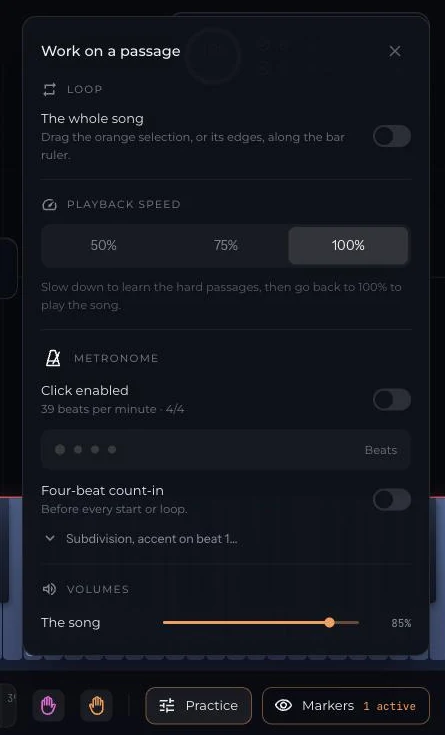
- The loop: select measures on the ruler; the section repeats until it is smooth.
- The speed: slow down to learn difficult passages, then go back to 100% to play the song. A fine adjustment is available.
- The hands: PianoGo offers to play the right hand alone or the left hand alone for a passage.
- The metronome sets your rhythm, with fine settings (subdivision, accent on beat 1).
Which markers can I display?
The Markers panel groups:
- note names, on the key while the note sounds and under the notes of the sheet music, in "Do re mi" or "C D E" notation;
- fingering from 1 to 5, with a number on each falling note;
- a different color for each hand;
- the note counter: accuracy, streaks and missed notes, in Practice mode.
The metronome and fingering from 1 to 5 are part of PianoGo Premium. The free account leaves them out.
Is there a course for beginners?
Yes: The Fundamentals course. The free account gives access to 3 lessons, Premium to 34 lessons and a diploma at the end of the course.
What about phones and tablets?
On the website, the learning screen is reserved for computers. On phones and tablets, PianoGo sends you to its app, available on the App Store and Google Play.
Next: the learning screen, the catalog.
Was this article helpful?
In the same topic
Ready to try it?
Turn your songs into sheet music and MIDI files with the La Touche Musicale apps in the HUB.